Analyzing Survey Data in Tableau: Diverging Stacked Bar Charts
About two or three times a year I'm tasked with analyzing data from our "Q12" Employee Engagement Survey. This survey asks 12 Likert response questions, of which I've usually relied on Jason Bryer's 'likert' r package to help visualize and explain the results.
This package is capable of making diverging stacked bar charts. That look something like this...

Photo from [http://reganmian.net/blog/2013/10/02/likert-graphs-in-r-embedding-metadata-for-easier-plotting/](Stian Haklev)
Some key features of the Likert package (not all of which are pictured above)...
- We get a set of diverging stacked bars, meaning neutral responses are split between the left and right sides of the chart.
- Bars are sorted by favorable responses, letting us see which questions performed the best.
- We get the n-Size for each question, showing how many participants responded to that question.
- We get a summary stat showing the percentage of respondents who answered favorably.
- We can break down questions by subgroups to see how the distribution of responses differ.
With that said, I don't typically do my daily work in R. I wanted a way to recreate these types of charts, with all the features listed above, in Tableau. I set out to do just that and I think the solution presented here ticks just about all the boxes.
Before we begin... I based a lot of the work in creating this visualization off of this post from Data Revelations. However that chart fell short of a few features that I have included in my tutorial here.
And if you would like follow along you can access the data I used here.
As well as view the complete visualization here.
(It will look something like this!)

Prepping the Data
We'll start off with the survey data fresh out of the survey app of your choice. Chances are it will look something like this.

We have a row for each respondent, along with some demographic info, followed by a column for each survey question. Our first step after bringing the data into Tableau will be to pivot the data into a tidy format to analyze. Highlight all of the columns containing survey responses, right click, and select pivot.

You'll now see each row represents a single answer to a single question. I like to rename our two pivoted columns to "Question" and Response" respectively.

Creating New Fields
We're going to need create a whole handful of new fields in order to create our diverging bar chart. I like to do all of this work in a new sheet, creating a table as I go to keep track of our new fields. Start off by creating a table with Measure Names for the Columns (we won't have any to start off with), and Question and Response as the rows. It will look something like this.

Converting Likert Responses to Numerical Values
First thing we'll do is convert our Likert responses to Numerical Values. In the Data Pane right click and select "Create Calculated Field"

We'll convert our Likert responses using a simple CASE statement, calling this new field Response(Numerical). In the formula window we'll enter the following...
CASE [Response]
WHEN "Strongly Agree" THEN 5
WHEN "Agree" THEN 4
WHEN "Neither Agree or Disagree" THEN 3
WHEN "Disagree" THEN 2
WHEN "Strongly Disagree" THEN 1
END
Once we have our new field, we'll use this to sort our Responses in order. We'll be doing some table calculations that are dependent on the previous row of data, so this step is absolutely critical. On this sheet, and every other sheet we make, you must sort your responses from low to high. To do this select "Response" in our Row shelf, and select sort.

Then, sort ascending by our Response(Numerical) field, using the average as an aggregation (Min and Max will work as well. All three of these aggregations will simply be the value we assigned to the response and sort them appropriately.)

Getting the Total of Each Response
Our next measure, and the first to go into our table, will simply be a count of each response. Again, create a new calculated field. Name this one "Number of Records" and enter the following formula.
COUNT([Response(Numerical)])
We'll add this to our table now. Drag Measure Values into the Marks Text box. In Measure Values we will to have two Measures, one will be a CNT(MOCK_DATA) and the other our Total Responses. (Most likely these, as well as others we don't need, will be auto populated for you. Feel free to clean things up a bit!)
Our new table will look something like this...

We can see our table now has a column for the Number of Records, or Respondents, that answered each response. (We also see that our CASE statement doesn't count the empty rows, which is exactly what we need.
Getting the Negative Responses
Our next step will be to calculate the negative responses. But more specifically, calculate the number of responses that will go to the left of our diverging bar chart. Our Likert scale has 5 possible answers, with the middle answer being a neutral response. Our diverging bar chart should have 1/2 of the Neutral Responses to the left of the middle (zero) coordinate, and the other 1/2 to the right.
Create a new field named "Negative Responses". We'll use the following IF statement to create a new field that will let us count up the total "Negative Reponses", counting 1/2 of the neutral responses.
IF [Response(Numerical)] < 3 THEN 1
ELSEIF  [Response(Numerical)] = 3 THEN .5
ELSE 0
END
We can add this field to our Measure Values, and our table should look like this.

Calculating the Total Negative Responses
Our next Measure will simply be the sum of the negative responses for each question. Lets create a new calculated field called "Total Negative Responses". We'll use Tableau's "Total" function to add up the all the negative responses for each question. Enter the following formula.
TOTAL(SUM([Negative Responses]))
Before clicking ok we'll want to set how Tableau applies this calculation across the table. In the field editor select "Default Table Calculation."

And change "Compute using" from Automatic to our "Response" field. This will tell Tableau to sum up the Negative Reponses for each Response in our row.

Add this new measure to our table. It should look something like this.

Calculating the Total Responses
In addition to knowing the total number of Negative Responses, we'll need the total number of responses overall. Create a new field called "Total Responses". Enter the following formula...
TOTAL([Number of Records])
And just like before set the Table Calculation to our Response field.

Add this field to our table and we should have something like this...

Calculating the Percentage for each Response
Our next step will be to calculate the percentage of each response. I should also mention here, that the percentage will also act as the width of our bars. To calculate the percentage, create a new field called Percentage with the following formula...
[Number of Records]/[Total Responses]
Before adding this new measure to our table, lets change its formatting so it will display as a percentage. Right click on the Percentage measures pill, select Default Properties and Number Format.

Select Percentage and click Ok.

Finally add this to our table.

Calculating the Start of our Bar Chart
We now have the percentage of each response, which will act as the width of each in our chart bar. Now we need to determine the starting location of each of our stacked bars. We'll start by using our "Total Negative Records' field to calculate the position of our left most bar. Since this will be a modified Gantt Chart we'll call this new measure "Gantt Start". Create a new calculated field called Gantt Start using the following formula...
-[Total Negative Responses]/[Total Responses]
As before set this fields Default Number Format to Percentage and add it to our table.

What is this "Gantt Start" number? We'll its the position where if we start to stack our bars, the neutral responses will be perfectly split in the middle at position 0. Its the starting position on our X-Axis for each of our stacked bar charts.
Calculating the Start of Each Bar in the Chart
Using the Gantt Start measure we can figure out now where each and every bar will start and end. For example, for our first question...

The bar for Strongly Disagree (our left most bar) will start at position -50.65, and it will be 20.30 units wide (so it will end at -30.35). Our next bar to the right of that one (Disagree) will start at -30.35, be 20.40 wide, and end at -9.95.
We can have Tableau do this calculation for us (and we'll only need the starting position, and the width of each bar to create our chart.) Create a new calculated field called 'Gantt Position' and enter the following formula...
PREVIOUS_VALUE([Gantt Start])+ZN(lookup([Percentage],-1))
Lets break this formula down a bit. PREVIOUS_VALUE([Gantt Start]) will retrieve the previous value of the row (unless its the first row in which it will return the Gantt Start value we calculated instead). This is why it was so important to sort our rows by Response earlier!
The lookup([Percentage],-1) will get the previous rows percentage (width), which we add to the previous rows value to get the starting position for this new row.
The lookup is wrapped in a ZN function as the lookup would return Null on the first row. ZN replaces that null with a zero allowing the formula to work in the first row.
After setting the Default Number Format to Percentage and adding it to our Measure Values the table should finally look something like this...

This is everything we need to make our chart. We'll come back to this table and add some more fields later to create some labels on our chart. But for now lets create a new sheet and make this chart!
Making the Chart
Create a new sheet and lets name it "Chart".
We'll start off by dragging Question into the Row shelf. In columns we'll drag our Gantt Position field into columns. Remember, this value represents the starting location of each of our bars in the stacked chart.
Finally we'll drag Response into the marks shelf as a Color option. Change the Marks setting to Gantt. And remember, we always need to sort our responses. So right click on the response pill and change the Sort like we did before, using the Response(Numerical) field to sort.

If you have any Null values you'll also want to filter those out too. We're not including any empty responses in our chart here.

If all is well and good your chart should look something like this...

You'll see we have a Gantt bar now indicating the starting position for each one of our survey Reponses. The last step it to set the width of each bar to fill its space. This is easily accomplished by dragging the Percentage measure into our Gantt Bar mark as "Size"

And there we have it! We've made a Diverging Stacked Bar Chart!

This should start to give us an idea of which questions performed well and which were rated unfavorably.
But there is much we can do to improve this chart. Lets talk about how we can sort, label, and split this chart up by subgroups.
Improving the Chart Design
Setting Colors
This will be one of the easiest improvements, but by changing the colors of our stacks we'll better be able to see the difference in favorable and unfavorable responses. If you're a Tableau wizard you'll already know how to do this, but for everyone else...double click on the Response legend to the right for your chart. Here you can click on each Data Item and assign its color. I like to set the following color scheme for 5-point Likert Data.

And at this point if you haven't resized your chart to fit the Entire View I would highly recommend that as well.

Sorting by Favorability
Sorting our questions by favorability is possibly one of the best things we can do to help us visualize trends across questions. To do this we'll need to create a few new metrics. I like to create these back in our table view to make it easier to see what we're doing!
To sort by favorability we'll need to create a metric that lets us know what percentage of responses were favorable, Agree and Strongly Agree. First we'll create a field similar to our Negative Responses field, we'll call it Positive Reponses(Sort Field), and enter the following formula...
IF [Response(Numerical)] >3 then 1
ELSEIF ISNULL([Response(Numerical)]) then NULL
ELSE 0
END
You'll notice we didn't include Neutral responses here. I only want to sort by favorable responses. So we'll leave those out.
We'll add this measure to our table, I like to add it right after the Negative Responses and Total Negative Response measures we added earlier.

Next, just like our Negative Responses we'll create a Total column that will add up the Positive Responses for each question. Call this new field "Total Positive Responses" and enter the following formula...
TOTAL(SUM([Positive Responses]))
Make sure again to set the Table Calculation for this field to be computed using Response

Go ahead and add this to your table as well.

Finally we'll create our sorting field. Create a new field called % Positive (Sort Field), we'll call it this since we'll be using a different field for our labels later on. Enter the following formula...
Sum([Positive Responses])/Count([Positive Responses])
This formula will sum up the 1's from our Positive Response Field and divide by the total number of responses, 1's and 0's excluding our nulls.
Since there isn't a table calculation on this field there isn't much point in adding it to our table. But its the perfect field to use to sort by question!
Lets go back to our chart, in the Rows shelf select our Question pill and click Sort.

Here we'll want to Sort By, Descending, our new % Positive(Sort Field).

We should immediately see that our chart is now sorted from High to Low, with the most favorable questions being on the top, and the ones with the poorest response being on the bottom.

You'll also notice, very interestingly, our fourth question in my example appears to be more skewed towards the positive then those above it. That's because a lot of people were indifferent (Neither Agree nor Disagree), which we did not use to sort our fields. (This tends to be a very controversial point about using the Diverging Stacked Bar Chart!) However I think this often lends itself to a pretty good discussion of the data, and is easily explained in our next step when we add some labels!
Adding Labels
We'll be adding two sets of labels to our chart. The first will be to label each bar with its individual percentage. The second will be adding a total "Agree and Strongly Agree" percentage to the right of each bar. Lets start with the first since the latter will require some new fields.
To label our bars its as simple as dragging the Percentage Measure into the Marks shelf as a Label.

You'll want to set the alignment to center. This will allow the percentage to be displayed in the center of each of its bar.

Our labeled graph should look something like this now...

Now to add labels showing the percentage of favorable, Agree and Strongly Agree, responses to the right of each bar. This one is a bit tricky. We'll need to figure out two things...
- What is the X position where the last bar ends (this is where we will put our label.)
- What is the total percentage of positive responses for each question.
Lets start with the first, and we'll do this work back in our table.
We'll start by making a field called Last, we'll use this field to identify with Response is the last one for each question (imagine a survey where nobody picks Strongly Agree, the last Response might be Agree!). Create the new calculated field with the following formula...
Last()
Make sure to apply the table calculation on our Response field. Add it to the table. It should look like this.

You'll notice that the Last() function labels each response with its position from the LAST response in the row. Since we've already sorted by Response this means that the last bar in our chart will have a value 0 in this column.
Now to figure out the ending position of our bar chart. Create a new field called "End Position" and enter the following formula...
If [Last] = 0 THEN [Gantt Position] + [Percentage] END
What this formula will do, is for only the responses that are on the very end of our bar chart, take their staring position (Gantt Position) and add to it the bars width (Percentage). These added together will give us the ending position of our last bar. Go ahead and add this new field to the table to see what I mean. (Remember to change its Number Format to a Percentage!)

These percentages are the very ends of our bar charts for each question. Now that we have the position for our labels we need to create a field to hold the label value ourselves. We already calculated the % Positive responses once, but since we calculated that on a per row basis it won't help us here. Lets create a new field we can use for our label. Call this % Positive (Label) and enter the following formula..
[Total Positive Responses]/[Total Responses]
Again set the Number Format to Percent and add it to our table.

We now have everything we need for our labels, a position and the actual value. Lets go back to our chart and see how we're going to add them!
We'll add these labels by creating a second Gantt chart and combining the axis. Drag End Position into the columns shelf.

By default its going to add some marks we just don't want. Lets set the marks correctly. In the new End Position Marks shelf we'll want the following. Response should be "Detail", sorted by Response(Numerical) like always. And we'll want our % Positive (Label) as the Label text. And we'll want to make sure we right align the label.

We should now have two charts side by side that look something like this...

This right hand bar has marks at our end position, with labels that show the total percentage of favorable responses.
Our last step will be to combine them together. In our Columns shelf select our End Position pill and click dual axis. This will combine the charts, however your bars may not be properly aligned. To fix this right click on the axis labeled End Position and select "Synchronize Axis". Our new bars and labels should be perfectly aligned.
You'll notice now you have a somewhat unnecessary grey bar at the end of each stack.
 This is simple enough to get rid of. Back on the Marks shelf under End Position click the Color option and set the opacity to 0%.

At this point I like to hide both the axis headers (since they don't' really tell us anything anyways!) by right clicking each axis and unchecking "Show Header."

And likely you'll have null values from our End Position field. I also like to hide that indicator as well.

Our chart should now look like this.

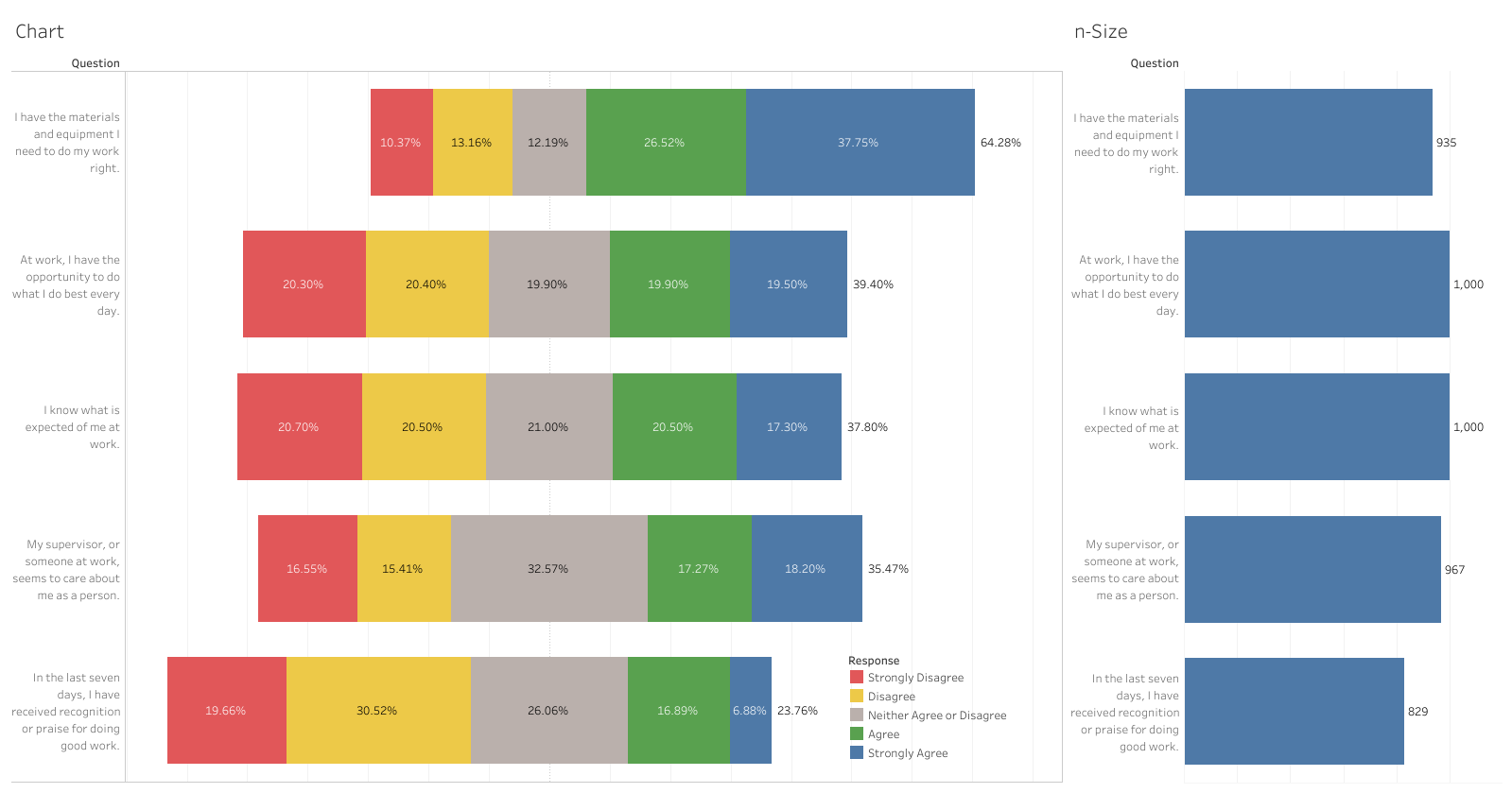
I absolutely love all the things this chart tells us. We can quickly see which questions are the most favorable and which are the least favorable (our sort). As well as we can see the total percentage of favorable responses (our label.) It makes things like our third question easy to explain. Its ranked pretty low since it only had 35.47% favorable responses (but its easy to see that it had a lot of neutral responses as well!
Adding n-Size
This step is really optional, but I like to include it since its a feature of the R Likert package, and its helpful for seeing how many people responded to each question. Since we've used up our two axis we'll have to add our n-Size as a separate chart and combine the two into a dashboard. (I actually like this better since it allows us to resize our n-Size chart to our liking anyways!)
The quickest way to create this chart is to duplicate our current chart with a right click.

I like to rename this chart "n-Size"
Start by removing the End Position pill with a right click, remove.

Followed by the Gantt Position pill. And replace it with the "Number of Records" measure.

Now we'll update the Marks. The only thing we'll want here is the same Number of Records measure as text. Change the Mark to a bar chart, and I like to set the label to be right aligned. We should have now a bar chart showing the n-Size for each question. (You'll want to go ahead and hide the axis header as well on this chart.)

To put this side by size to our diverging stacked bar chart, create a new dashboard. On the dashboard drag your Chart and n-Size sheets to be side by side. (You most likely will want to set the size of your dashboard or set it to automatic.)
You'll most likely have something that looks like this.

The legend will most likely be taking up a whole column of its own by default. To fix this right click on the legends tool bar and select 'Floating', allowing you to place the legend anywhere appropriate.

After deleting any extra placeholders, and resizing your charts, you should have something that looks like this!

From here you'll want to put on any finishing touches. Deciding what measures should appear in tooltips and such!
Bonus: Splitting the chart by subgroups!
This is one of my favorite things about this chart setup. I'll often get asked something along the lines of "How did these responses differ across departments?" This is really easy to answer. You can drag any field you want to the Rows shelf to split the responses by that field. Lets try it! Drag "Department" to the Rows shelf. Your chart should update to look something like this!

I can now see how each question differed by department! (You'll want to add this additional measure to your n-Size graph as well!)
Conclusion
These Diverging Stacked Bar charts are a great tool for looking at survey data. They allow us to quickly see how survey responses differed from question to question, and to break down our data by subgroup! I hope this tutorial helped you create these charts in Tableau, and if you have other tips and tricks please feel free to share!
Comments
Join the discussionGreat tutorial! One issue I ran into was with the Gantt Position. The first question's Gantt position were correct however the following questions' positions began at weird intervals and as a result, the bars for each response were spaced out instead of being connected. I think this was caused by the nature of the PREVIOUS_VALUE statement. It carries on the value of the previous row, even it was from a different question.
To fix this, start by changing the the Gantt Position calculated field to: IF FIRST() = 0 THEN [Gantt Start] ELSE PREVIOUS_VALUE([Gantt Start])+ZN(lookup([Percentage],-1)) END
Then go into "Default Table Calculation" and change the "Compute Using" to "Response". This will make sure the questions are partitioned correctly and the Gantt Position will reset with every question. Hope this helps!
Hi Will! I'm new to Tableau and really appreciated this tutorial. I have zero tips and tricks to share but was hoping you may have quick advice after I've attempted your gantt chart for the entire afternoon. I can't get the neutral bars to center at 0, even with the data being accurate. Am I missing something obvious?
